

This is a beta feature according to Algolia’s Terms of Service (“Beta Services”).
Key capabilities
Key capabilities
- External integrations: connect to weather APIs, CRM platforms, inventory systems, or payment processors
- Algolia MCP Server: share your Algolia indices across multiple AI platforms with centralised configuration
- Multi-tenant support: override authentication tokens at request time for per-user credentials
- Tool filtering: filter and rename exposed tools for precise agent control
- Secure storage: automatic credential encryption at rest
- Local development: use
ngrokto expose local MCP servers during development - Timeout protection: 10-second timeout for reliable performance
Algolia encrypts credentials before storing them.
Supports runtime header overrides for multi-tenant apps.
For more information, see MCP security.
MCP servers
- Algolia MCP Server: a pre-configured server that exposes your Algolia indices across multiple AI platforms. Create instances from the Algolia dashboard MCP servers page. For more information, see Algolia MCP Server
- Third-party MCP servers: connect to external services like weather APIs, CRM platforms, inventory systems, or custom APIs. Browse the official MCP registry for pre-built servers.
MCP tools use the Streamable HTTP](https://modelcontextprotocol.io/specification/2025-03-26/basic/transports#streamable-http) transport method.
STDIO and SSE aren’t supported.
Connect MCP tools to your agent
- From the dashboard
- With the API
Prepare your MCP server
For Algolia MCP Server:
- Go to the MCP servers page
- Click Create MCP server
- Select the indices you want to expose (for example,
products,articles) - Add descriptions to help the AI choose the correct
- Click Save
- Copy the generated MCP server URL (format:
https://mcp.{REGION}.algolia.com/1/{UNIQUE_ID}/mcp)
- Find a server in the official MCP registry
- Build your own MCP server following the MCP specification
-
For local development, use
ngrokto expose your local MCP server with a public URL:ngrokgenerates a public URL (for example,https://abc123.ngrok.io) that you can use in Agent Studio.
Add MCP tool to your agent
From the Agent Studio agent edit view in the Algolia dashboard:
- Click Add tool > MCP Tool
- Configure the MCP server connection:
- Name: unique identifier (no spaces, alphanumeric, underscores, and hyphens only)
- URL: your MCP server HTTP streaming endpoint
- Algolia MCP:
https://mcp.{REGION}.algolia.com/1/{UNIQUE_ID}/mcp - External: your MCP server URL (for example,
https://weather-api.example.com/mcp)
- Algolia MCP:
- Authorization token (optional): JWT bearer token for authentication
- For Algolia MCP: use the format
{APP_ID}:{SEARCH_API_KEY} - For external APIs: your API key or token as provided by the service
- For Algolia MCP: use the format
- Click Connect to fetch available tools from the MCP server
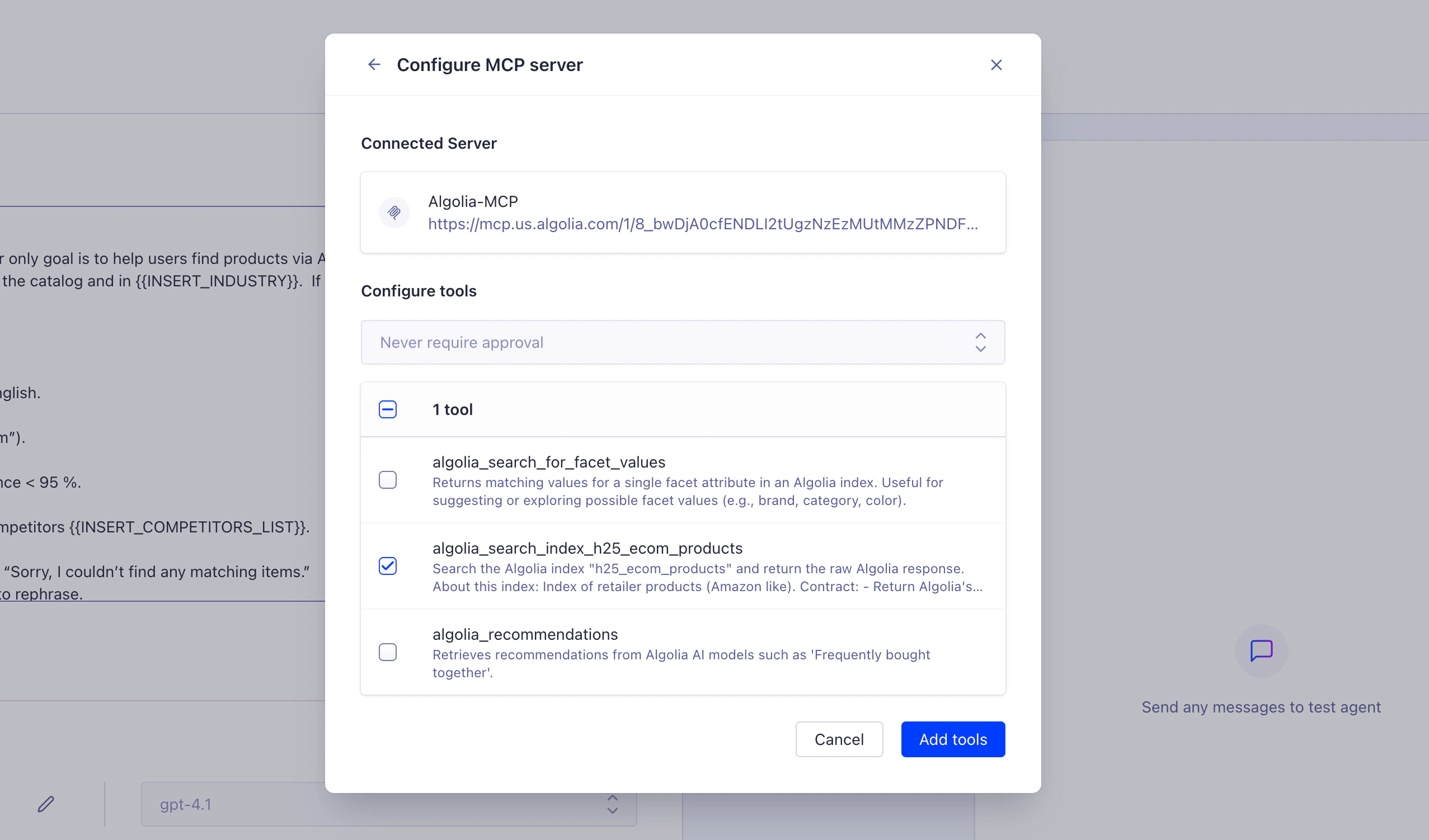
Select tools and set approval level
Once connected, the dashboard displays all available tools from the MCP server:
- Select tools: choose which tools to enable for your agent
- Select all tools with one click, or
- Select specific tools individually
- Set approval level: configure how the agent uses these tools
- Never require approval: agent can call tools automatically (recommended for most use cases)
- Always require approval: user must approve each tool call before it runs (useful for sensitive operations)
- Click Add tools to complete the configuration